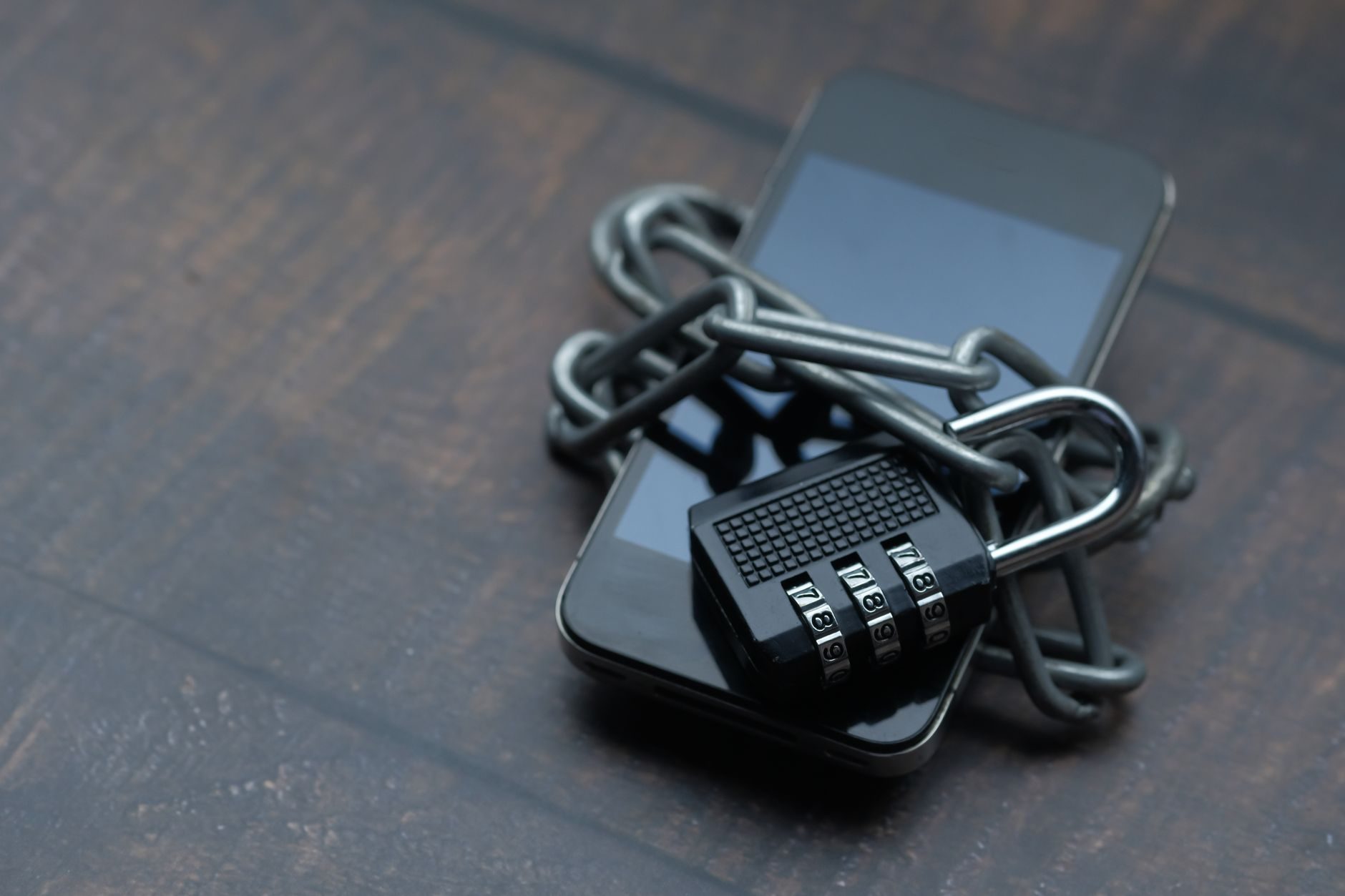
I handed my phone to a friend to show them a photo once. Within about 45 seconds, they'd swiped through my notifications, seen a banking alert, and accidentally opened a message I didn't want them to see. Totally innocent on their end. But it made me realize — my phone was basically an open book to anyone who held it for more than a minute.
So I spent a weekend going through every security setting on both my iPhone 16 Pro Max and a Samsung Galaxy S25 Ultra I'd been testing. Honestly, I was a little embarrassed by what I found.
Here's the thing: most phone security advice online is either obvious ("use a strong password!") or paranoid to the point of being useless. What I actually want to talk about are the settings that are real, practical, and sitting right there in your phone — that most people just never touch.
Lock Screen Notifications Are a Bigger Problem Than You Think
Your lock screen is basically a billboard. By default, both Android and iOS show full notification previews when your screen lights up — message content, email subjects, banking alerts, the works. Anyone standing next to you can read it. Anyone who picks up your phone sees it immediately.
On iPhone, go to Settings → Notifications → Show Previews and switch it from "Always" to "When Unlocked." Takes ten seconds. Now your lock screen just shows the app name, not the content.
On Samsung Galaxy devices running One UI 7 (which shipped on the S25 series in early 2025), it's Settings → Notifications → Lock screen notifications → Hide content. Same idea.
"The lock screen is the most overlooked attack surface on a smartphone. It's not about hacking — it's about someone simply reading over your shoulder." — security researcher Zack Whittaker, TechCrunch, 2024
I tested this at a coffee shop. Left my phone face-up on the table for 20 minutes. Three different notifications came in — including one from my bank. Anyone at the next table could've read them. After changing the setting? Just generic app icons. Much better.
Two-Factor Authentication That Actually Works
Everyone says "turn on 2FA." Almost nobody talks about which kind matters.
SMS-based two-factor authentication — where a code gets texted to your number — is significantly weaker than most people realize. SIM-swapping fraud (where someone convinces your carrier to transfer your number to their SIM) has been a documented issue since at least 2017. The FBI's Internet Crime Complaint Center reported over $72 million in losses from SIM-swapping attacks in 2022 alone.
Use an authenticator app instead. Google Authenticator (free, iOS and Android) or Authy (free, also available on desktop) generate time-based codes locally on your device. No SIM involved. Way harder to intercept.
I switched my main email, banking apps, and social accounts over to Authy about two years ago. Setup took maybe 30 minutes total. I haven't thought about it since — it just works.
What About Passkeys?
Passkeys are becoming the new standard in 2025 and into 2026, and they're genuinely great. Apple, Google, and Microsoft all support them now. Instead of a password plus a code, your phone itself is the authentication — using Face ID or fingerprint to verify. No password to phish. No code to intercept.
If an app or site offers passkey login, use it. It's the strongest mainstream option available right now.
App Permissions You Probably Approved Without Reading
Raise your hand if you've ever just tapped "Allow" on a permission prompt because you wanted to get into an app quickly. Yeah. Me too, every single time.
The problem is some of those permissions are genuinely unnecessary and a little weird. I went through my permissions list last month and found a flashlight app that had requested access to my contacts and microphone. A flashlight. That uses the camera LED.
On iPhone: Settings → Privacy & Security. Go through each category — Location, Microphone, Camera, Contacts — and check what's listed. You'll probably find a few surprises.
On Android (Pixel 9 Pro or Samsung S25): Settings → Privacy → Permission Manager. Same drill.
My rule now: if an app doesn't obviously need a permission to do its core job, I deny it. Instagram doesn't need my contacts. A recipe app doesn't need my location. If the app breaks without it, that tells me something about the app.
The "Find My Phone" Setup Most People Half-Do
Find My (iPhone) and Find My Device (Android/Google) are genuinely useful when you lose your phone. But there's a version most people enable and a version that actually protects you — and they're not the same thing.
On iPhone, just turning on Find My isn't enough. You also want Stolen Device Protection enabled. Apple added this in iOS 17.3 (released January 2024) after a documented pattern of thieves watching people enter their passcodes in public before stealing their phones. With Stolen Device Protection on, changing your Apple ID password or turning off Find My requires Face ID — and there's a one-hour security delay if you're not at a familiar location like home or work.
Find it at: Settings → Face ID & Passcode → Stolen Device Protection.
I spent way too long figuring out why this wasn't on by default when I first updated. It's not. You have to go turn it on manually. Just go do it now.
Android's Version
Google added similar features through their "Theft Protection" update rolled out to Android 10+ devices starting in mid-2024. It includes AI-based motion detection that can lock your screen if it detects your phone being snatched. On Pixel devices, it's under Settings → Personal Safety → Theft protection. Samsung has it under Settings → Security and privacy → Device protection in One UI 7.
Enable it. It takes 30 seconds.
Auto-Lock Is Set Too Long on Almost Every Phone Out of the Box
Default auto-lock on most phones is 30 seconds to 1 minute. That might feel annoying to change, but here's the thing — if someone grabs your phone while the screen's still on, they've got full access.
I set mine to 15 seconds. Yes, I have to unlock it slightly more often. No, it doesn't actually bother me — Face ID and fingerprint readers on 2024/2025 flagships are fast enough that it's basically instant anyway. The Apple A18 chip in the iPhone 16 Pro handles Face ID authentication in under 0.3 seconds in ideal conditions. The Snapdragon 8 Elite in the Galaxy S25 Ultra is similarly quick with fingerprint.
On iPhone: Settings → Display & Brightness → Auto-Lock.
On Android: Settings → Display → Screen timeout.
Set it as short as you can tolerate.
Your Wi-Fi History Is Leaking Your Location
This one genuinely surprised me when I learned about it. Your phone keeps a list of every Wi-Fi network it's ever connected to and automatically broadcasts that list (in older protocols) while scanning for known networks. Researchers have demonstrated that this can be used to figure out where you've been — your home network name, your office, the hotel you stayed at in a different city.
Modern phones have gotten better about this with MAC address randomization, but your saved network list is still sitting there. Periodically cleaning it out is a good habit.
On iPhone: Settings → Wi-Fi → Edit (top right). Delete networks you don't need anymore.
On Android: Settings → Network & internet → Internet → Saved networks. Same idea.
Also worth checking: make sure your phone isn't set to auto-connect to open (unsecured) networks. On iPhone that's Settings → Wi-Fi → Auto-Join Hotspot → Never or "Ask to Join Networks" toggled on. On Android it varies by manufacturer, but look under Wi-Fi preferences for something like "Connect to open networks."
Emergency SOS and Medical ID — Actually Set These Up
Okay this one isn't really about keeping bad actors out — it's about making your phone useful in a real emergency. And most people have never touched these settings.
On iPhone, Medical ID (Health app → Medical ID) lets first responders see your blood type, medications, allergies, and emergency contacts — even from your lock screen. It's been there since iOS 8. I'd estimate the majority of iPhone users have never filled it in.
Emergency SOS on both iPhone and Galaxy S25/S24 series can also be configured to automatically contact emergency services and share your location with your emergency contacts when triggered. On iPhone, it's in Settings → Emergency SOS. Worth spending five minutes on.
If you're in a country where emergency numbers differ (112 in most of Europe, 999 in the UK, 911 in North America), your phone handles that automatically when you trigger Emergency SOS — it dials the right number based on your location.
Updates. I Know. But Seriously.
I'm not going to lecture you about updates. You've heard it. But I'll say this: the gap between "security patch released" and "active exploitation of the vulnerability it patches" has gotten shorter every year. Google's Project Zero team published data in 2023 showing that the average time from patch release to active exploitation dropped to under 15 days for some vulnerabilities.
That means sitting on an update for a month isn't low-risk anymore.
Turn on automatic security updates if you haven't. On iPhone: Settings → General → Software Update → Automatic Updates — make sure "Security Responses & System Files" is toggled on. That one specifically lets Apple push critical security fixes without a full iOS update. It's been available since iOS 16.4.1 and it's genuinely useful.
On Android, security patch updates and Google Play system updates are separate. Check Settings → Security → Google Play system update as well as your regular software update path.
One More: Check What Has Access to Your Accounts
Periodically go to your Google account or Apple ID settings and look at which third-party apps have been granted access. Not app permissions on your phone — actual OAuth access to your account. Stuff you signed into once with "Sign in with Google" and never thought about again.
For Google: myaccount.google.com → Security → Third-party apps with account access.
For Apple: Settings → [Your Name] → Password & Security → Apps Using Apple ID.
I found six apps with active Google access that I hadn't used in over two years. Revoked all of them. If an app you don't use anymore still has access to your account data, that's unnecessary risk with zero upside.
None of this is complicated. It's just stuff that requires you to actually go looking for it — and most people never do. Set aside 20 minutes this week. Go through your settings. You'll probably find at least two or three things you'll want to change.
Your phone knows a lot about you. It's worth making sure you're the one deciding who else gets to know it.