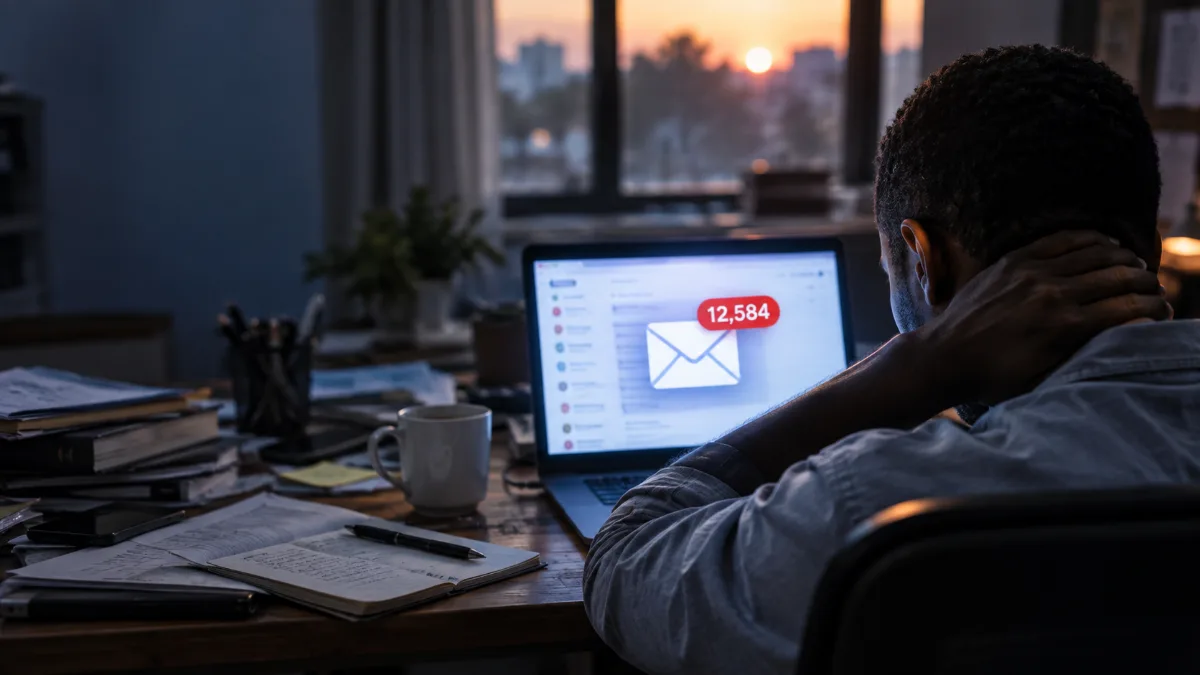
My inbox had 14,000 unread emails in it. Not a typo. Fourteen thousand. I'd spent years treating email like this ambient background hum I'd deal with "later," and later never came. Then I took a three-week trip in late 2024, came back, and genuinely could not find a contract renewal I needed to sign. It was in there somewhere, buried under newsletters I hadn't read since 2021.
That was the breaking point. I went down a rabbit hole and tried basically everything. Here's what actually worked — and what's mostly productivity theater.
First, Let's Talk About What Inbox Zero Actually Means
People have the wrong idea. Inbox zero doesn't mean you read and respond to every email the second it lands. Merlin Mann, who coined the term back in 2006, was pretty clear: it's about keeping your inbox as a processing space, not a storage space. Zero refers to the amount of time your brain spends worrying about what's in there.
The moment I understood that distinction, everything clicked. My inbox isn't where emails live. It's where they pass through.
The System That Actually Works: Process, Don't Park
The core method I use is a simplified version of David Allen's GTD (Getting Things Done) framework, specifically the two-minute rule plus a four-folder system. It sounds simple because it is — but simple isn't the same as easy.
The Four-Folder Setup
You only need four folders outside your inbox. I use Gmail labels but this works identically in Outlook, Hey, or Fastmail.
- Action Required — Emails that need a response or task but will take more than two minutes
- Waiting On — You've responded, now you're waiting on someone else
- Reference — Info you might need later (receipts, confirmations, docs)
- Archive — Everything else that's processed but shouldn't be deleted
That's it. No elaborate subfolder tree. I spent way too long building a beautiful folder system in 2022 that I never actually used because it required too many decisions per email. Four folders means four decisions. Your brain can handle that.
The Two-Minute Rule in Practice
When you open an email, you make one call immediately: can you handle this in under two minutes? If yes — reply, delete, archive, or forward right now. If no — move it to Action Required and close it.
This is GTD 101 but I'd never actually applied it to email before. The key is you don't park emails in your inbox with a mental note to come back. That mental note is the cognitive load that exhausts you.
Comparing the Big Email Clients: Where You Process Matters
I've tested this system across four different clients. They're not all equal.
Gmail (Free / Google Workspace from $6/month)
Gmail's keyboard shortcuts make processing fast once you learn them. E to archive, Shift+U to mark unread, V to move to a label — you can fly through 50 emails in five minutes once this is muscle memory. The tabbed inbox (Primary, Social, Promotions) is underrated. I let Google sort the noise automatically and only process Primary daily.
The downside: Gmail's search is great but its filtering UI is clunky. Setting up rules requires patience.
Hey (hey.com — $99/year for personal)
Hey by Basecamp is built around inbox zero philosophy from the ground up. The "Imbox" (important inbox), the Feed for newsletters, and the Paper Trail for receipts — it's the four-folder concept baked into the product. I used Hey for four months and genuinely loved it.
But honestly, $99/year is hard to justify when Gmail does 90% of the same job with a bit of manual setup. If you're willing to pay for a system that does the thinking for you, Hey is worth it. If you're not, don't bother.
Outlook (Microsoft 365 from $6.99/month)
If you're in a corporate environment, Outlook is non-negotiable — so knowing it well matters. The Focused Inbox feature works similarly to Gmail tabs. Rules and Quick Steps (Outlook's macro-like shortcuts) are genuinely powerful once set up. I use Quick Steps to one-click move emails to folders with a keyboard shortcut, which cuts processing time significantly.
Outlook on Mac is still worse than on Windows. That's just the truth.
Fastmail ($5/month)
Fastmail is what I use as my personal non-work email now. Privacy-focused, fast, and the rules engine is excellent. If you're moving away from Google's ecosystem, this is where I'd go. The interface takes getting used to but the filtering tools are the best I've seen.
"The best email client is the one you'll actually use consistently. Switching apps doesn't fix a broken process — it just gives you new UI to ignore."
Automation Is Where People Leave Time on the Table
Manual processing is fine but filters and automation multiply your effort. Here's what I've set up that runs silently in the background every day.
Filters That Save the Most Time
- Auto-archive newsletters — Any email with "unsubscribe" in the body that isn't from someone I've emailed goes straight to a Newsletter label, bypassing the inbox completely. I check this folder once a week, Friday afternoon, for 10 minutes.
- Receipt routing — Filters that catch keywords like "your receipt," "order confirmation," and "invoice" and drop them into Reference automatically. I don't think about these until tax time.
- CC'd emails — Emails where I'm CC'd (not in the To: field) go into a lower-priority label. If someone needs me directly, they address me directly. Being CC'd usually means FYI, not action required.
Setting these up takes maybe 45 minutes once. After that, they run forever.
Using SaneBox (if you want to go deeper)
SaneBox (starts at $7/month, ~$36/year for the Snack plan) connects to any email account and uses AI to learn what's important to you. It auto-sorts low-priority email into a @SaneLater folder. I tested it for two months and it was accurate about 85% of the time, which is good but not perfect. The SaneBlackHole feature — where you drag an email to permanently block that sender — is honestly one of my favorite features in any email tool.
Whether it's worth $36/year depends on how chaotic your inbox is. For high-volume inboxes, yes. For moderate ones, Gmail filters do the job free.
The Scheduling Piece — This Is the Part Nobody Talks About
Processing email is only half the system. The other half is when you process it.
I check email at three fixed times: 8:30am, 12:30pm, and 4:30pm. That's it. Notifications are off — completely off, including on my phone. Between those windows, I'm not looking at email.
The pushback I always get: "But what if something urgent comes in?" Here's the deal — almost nothing in email is actually urgent. Real emergencies come through phone calls or Slack or a tap on the shoulder. If someone sends you an urgent email and then waits hours for a response, the problem isn't your email schedule.
I did add a small caveat for client-facing work: I added an auto-responder that says I check email at those three times and to call or text for anything time-sensitive. Nobody has called. People adjust when you set clear expectations.
The Nuclear Option: Archive Everything and Start Fresh
When I had those 14,000 unread emails, I didn't process them one by one. That would have taken weeks and killed my motivation before I started.
I did what some people call "email bankruptcy." I created a folder called "Old Inbox — Pre-2025" and moved everything into it. One keyboard shortcut in Gmail: select all, move. Done. Inbox empty.
The stuff in that folder? I've accessed it maybe twice in eight months. Both times were for old receipts I could have found through search anyway. Everything important had already been handled or became irrelevant. The fear that you'll lose something critical by archiving is mostly fear, not reality.
If you have a genuinely overwhelming inbox, start here. Don't try to process your way out of a 5,000-email backlog. Archive it and start the system fresh today.
Tools That Helped (And One That Didn't)
Unroll.me — Free tool that lets you unsubscribe from newsletters in bulk or roll them into a daily digest. I used it to unsubscribe from 73 lists in one session. There's been past controversy about their data practices (they were acquired by a company that sold user data), so use it knowing that. If privacy matters to you, do this manually or through Gmail's filter system instead.
Boomerang for Gmail (free tier available, $5-$15/month for paid) — Lets you schedule emails to send later and boomerang emails back to your inbox at a future time. That second feature is what I use for Waiting On items. Instead of a folder, I boomerang emails to come back to me in three days if there's no response. Keeps my Action Required folder clean.
Spark Email (free for personal) — I tried this as an email client and didn't love it. The AI features felt bolted on and the team collaboration stuff wasn't relevant to my solo workflow. Might be great for small teams. Wasn't for me.
What Actually Maintaining Inbox Zero Looks Like Day-to-Day
I want to be real: I don't hit zero every single day. Some days I end at 3 or 5 emails still in the inbox. That's fine. The goal isn't a perfect number — it's a consistent process.
My daily email routine is roughly:
- Morning check (8:30am, ~15 min) — Process overnight email, reply to anything under two minutes, move the rest to Action Required
- Midday check (12:30pm, ~10 min) — Same thing, lighter volume
- End-of-day check (4:30pm, ~20 min) — Process, do a pass through Action Required to see what I can close out, update Waiting On folder
That's roughly 45 minutes a day on email, down from what was probably 2-3 hours of scattered, unfocused email grazing before. According to RescueTime's 2023 productivity benchmark report (based on anonymized data from over 10,000 users), people who batch email into fixed windows saved an average of 1.4 hours per week compared to those who checked continuously. For me it felt like more.
The compounding effect is what surprised me. When your inbox isn't a source of anxiety, you make faster decisions in every other area of work too. It's like clearing a background app that was eating memory you didn't know you were using.
Eight months in, I still have the "Old Inbox — Pre-2025" folder sitting there untouched. At some point I'll probably just delete it. But I don't need to — and that's kind of the whole point.